How to Send Bulk SMS from Google Sheets (Personalised, Step by Step)
Send personalised bulk SMS from Google Sheets with names, amounts and dates filled in for every row, and delivery status in the sheet. Free add-on, no coding.
 Bulk SMS India Team 4 min read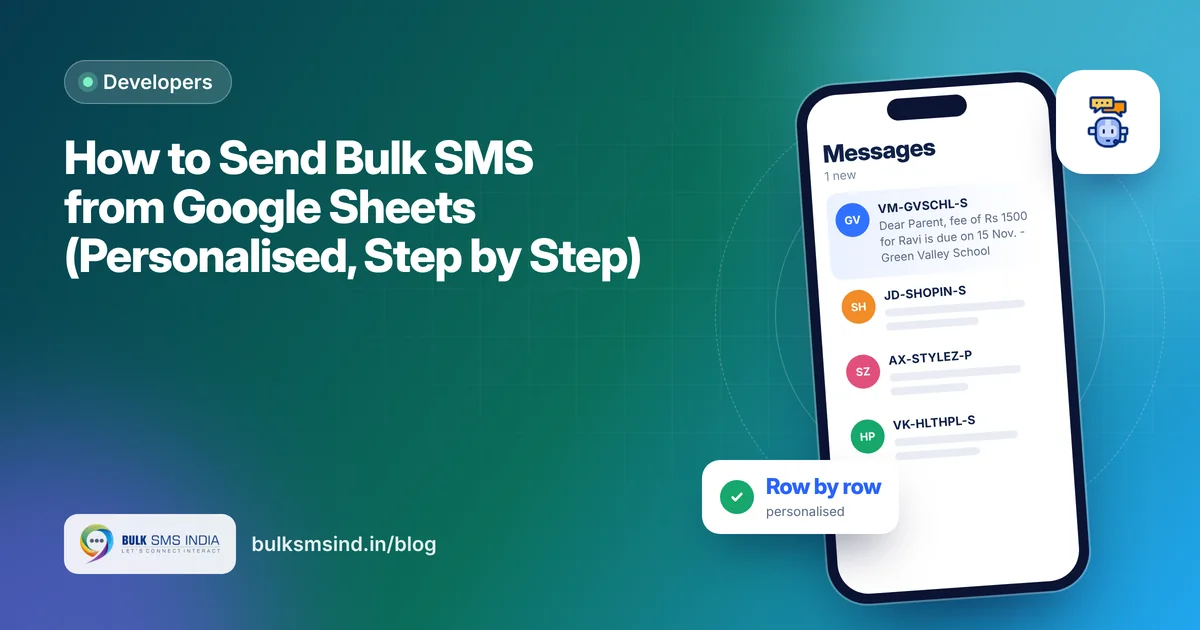
Most businesses already keep their customer lists in a spreadsheet: fee lists, payment dues, appointment lists, leads. With the free Bulk SMS India add-on, you can send SMS from Google Sheets directly, and that sheet becomes an SMS campaign. Every row gets its own personalised message, and the delivery status comes back into the sheet.
No coding, no uploading files to another panel.
What you can do when you send SMS from Google Sheets
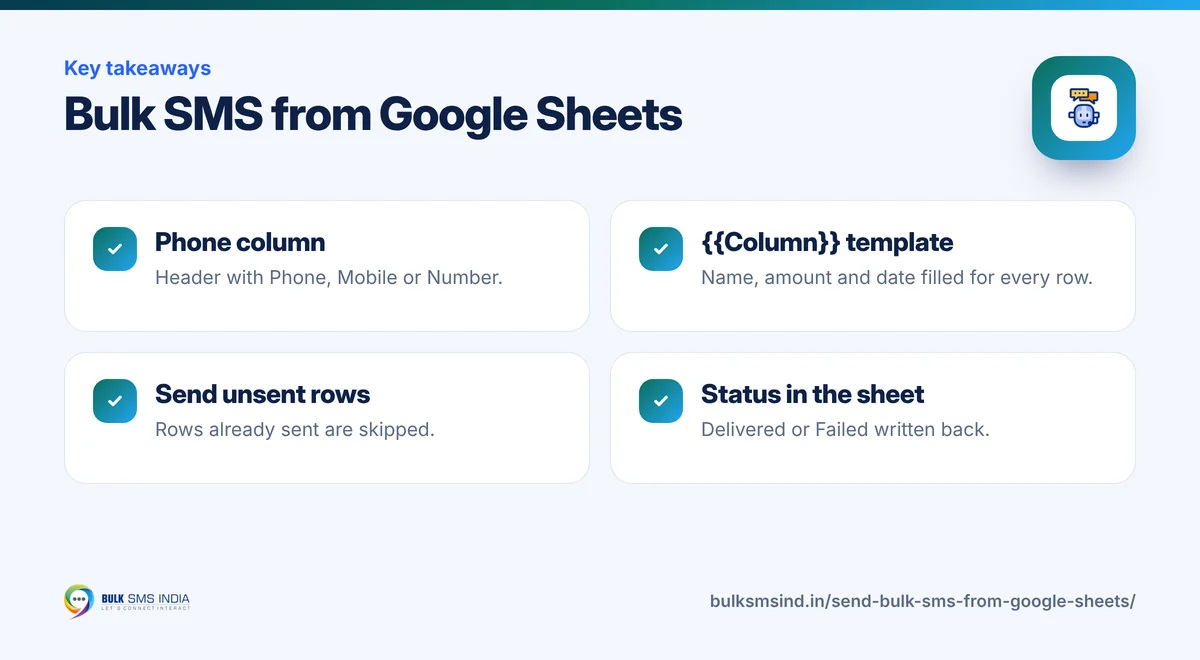
- Personalise every SMS with any column: name, amount, due date, class, order number.
- Send to selected rows or to all rows not yet sent. Rows already sent are skipped.
- See results in the sheet: SMS Status, Message ID and Sent At columns are added for you.
- Check delivery status in one click: Submitted rows change to Delivered or Failed.
- Check your SMS balance from the menu.
- Send on WhatsApp too, with up to 4 images per message.
Popular uses
- Schools and coaching: fee reminders with each student's amount and due date. See fee reminder SMS.
- Shops and distributors: payment reminders. See payment reminder messages.
- Clinics and salons: tomorrow's appointment list. See appointment reminder SMS.
- Sales teams: follow-ups to a list of leads.
Step 1: Set up your sheet
Your sheet needs a phone column and the details you want in the message. For example:
| Name | Phone | Amount | Due Date |
|---|---|---|---|
| Ravi | 9876543210 | 1,500 | 15 Nov |
| Asha | 9123456789 | 2,000 | 15 Nov |
- The phone column header must contain Phone, Mobile or Number.
- Add a Message column if you want a different text for some rows. Otherwise use one template for all.
What your customer sees
- DLT-approved sender ID and template
- Submitted to operators in real time
- Live delivery report for every number
- Works on every mobile phone
Step 2: Install the add-on (2 minutes)
- Download the add-on files from the Google Sheets SMS page.
- In your sheet, go to Extensions → Apps Script.
- Replace the code in Code.gs with the add-on's Code.gs.
- Add an HTML file named Settings and paste Settings.html.
- In Project settings, turn on "Show manifest" and paste appsscript.json.
- Save and reload your sheet. A Bulk SMS India menu appears.
Step 3: Add your account details
Open Bulk SMS India → Settings and enter your username, API key, DLT-approved sender ID and SMS type. Don't have an account? Create one here.
Step 4: Write your template
In Settings, write your message using column names in double curly brackets:
Dear Parent, fee of Rs {{Amount}} for {{Name}} is due on {{Due Date}}. - Green Valley School
Each row fills in its own values. Make sure the text matches your DLT-approved template, where these parts are registered as {#var#}.
Step 5: Send and track
- Select a few rows and choose Send SMS to selected rows to test.
- When you're happy, choose Send SMS to all unsent rows.
- After a minute, choose Check delivery status. The SMS Status column updates to Delivered or Failed.
Rows that are already sent are skipped, so you can safely run it again after adding new rows.
Tips
- Test with your own number first.
- Keep messages under 160 characters and write "Rs", not ₹. See SMS character limit.
- Clean the phone column: 10-digit numbers, no spaces or dashes.
- Very large sheets: Google limits how long a script can run, so send big lists in parts.
Frequently asked questions
Can I send SMS directly from Google Sheets?
Yes. With the free Bulk SMS India add-on, you can send a personalised SMS to every row of a Google Sheet and see the delivery status in the sheet.
How do I personalise SMS from a sheet?
Write a template with column names in double curly brackets, like {{Name}} and {{Amount}}. Each row's values are filled in automatically.
Will it send twice to the same row?
No, if you use "Send SMS to all unsent rows". Rows with a status are skipped.
Can I send WhatsApp messages from Google Sheets?
Yes. Add your WhatsApp API key in Settings and use "Send WhatsApp to selected rows". You can add up to 4 image URL columns.
Is the Google Sheets add-on free?
Yes. You only pay for the SMS or WhatsApp messages you send.
Ready to get started?
Talk to our team about the Google Sheets SMS add-on — setup help, DLT guidance and test credits.
Messaging specialists with 10+ years of experience (since 2016) helping 15,000+ Indian businesses with bulk SMS, WhatsApp, RCS and voice communication.